





 Australia
 Thailand




























Introduction: Seamless Connectivity for Your Next Adventure
Welcome to the future of travel connectivity! If you're gearing up for an international trip, you've likely heard about the convenience of eSIMs. This guide provides everything you need to know about how to activate EasyAlo eSIM on iPhone, ensuring you have reliable data from the moment you land. Say goodbye to hunting for local SIM cards and hello to instant, affordable internet. Whether you're planning a trip with a United Kingdom eSIM or exploring another corner of the globe, this step-by-step guide will make your iPhone eSIM activation a breeze.
By the end of this 2026 guide, you'll be an expert in eSIM setup on iOS, ready to manage your digital SIM like a pro. We'll cover everything from pre-installation checks to troubleshooting common issues, making this the best way to set up EasyAlo for international travel.
What You'll Need Before You Start
Before diving into the activation process, a little preparation goes a long way. Ensuring you have these three things ready will guarantee a smooth and quick setup. A stable internet connection is crucial for downloading the eSIM profile, so we recommend completing these steps at home or your hotel before you lose Wi-Fi access.
- A compatible, unlocked iPhone: Your iPhone must be unlocked and support eSIM technology. This includes iPhone XS, XR, and all newer models. To be certain, you can check our complete list of eSIM Compatible Devices.
- A stable Wi-Fi connection: You need an internet connection to download and install the eSIM profile onto your device. This cannot be done over a cellular network.
- Your EasyAlo eSIM details: After purchasing your eSIM, you will receive an email from EasyAlo containing your activation details, including a QR code and manual installation information. Keep this email handy.
Step-by-Step Guide to Activate EasyAlo eSIM on iPhone
Activating your new travel eSIM for iPhone is straightforward. Apple provides two primary methods for adding an eSIM: scanning a QR code or entering the details manually. The QR code method is the fastest, but the manual option is a reliable backup.
Method 1: QR Code Activation (Recommended)
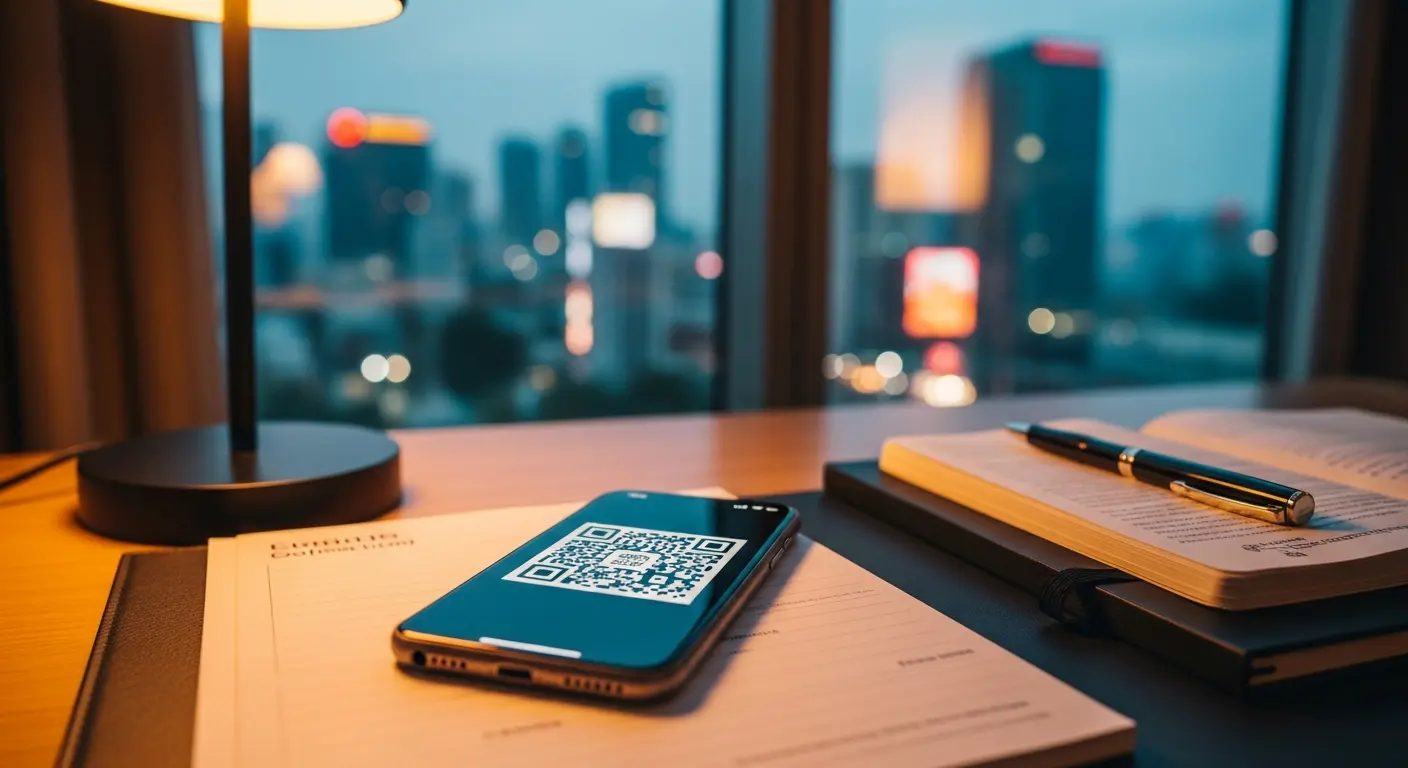
This is the most common and user-friendly method for iPhone eSIM activation. You will need to display the QR code on a separate device (like a laptop or tablet) or have a printed copy.
- Navigate to Cellular Settings: On your iPhone, go to Settings > Cellular (or Mobile Data).
- Add eSIM: Tap on Add Cellular Plan or Add eSIM. This will open your iPhone's camera.
- Scan the QR Code: Point your iPhone's camera at the QR code provided in your EasyAlo confirmation email. Your phone will automatically detect the eSIM profile.
- Follow On-Screen Prompts: Your iPhone will guide you through the final steps. You'll be asked to label your new eSIM (e.g., "EasyAlo Travel" or the country name) and choose its role (e.g., for cellular data only).
- Complete Activation: Once the plan is added, your eSIM is installed! Remember to only turn on Data Roaming for your EasyAlo eSIM once you've arrived at your destination to start the validity period.
Method 2: Manual Installation
If you can't scan the QR code for any reason—perhaps you don't have a second screen or the camera isn't working—you can manually install the EasyAlo eSIM profile on your iPhone.
- Go to Cellular Settings: Just like the first method, open Settings > Cellular > Add eSIM.
- Enter Details Manually: At the bottom of the QR code scanning screen, tap Enter Details Manually.
- Input Activation Info: Your EasyAlo confirmation email contains the necessary manual activation details. Carefully copy and paste the SM-DP+ Address and Activation Code into the corresponding fields on your iPhone. The confirmation code field can usually be left blank.
- Label Your Plan: As with the QR method, you will be prompted to label your new eSIM and select how you want to use it.
- Finalize Setup: Follow the remaining prompts to complete the installation. Your eSIM is now ready to be activated upon arrival at your destination.
Tips for a Successful eSIM Setup
To get the most out of your iPhone dual SIM with eSIM capabilities, keep these expert tips in mind.
- Install Before You Travel: The best time to add the eSIM to your iPhone is before you leave home while you have a stable Wi-Fi connection. This prevents any last-minute stress at the airport. For more insights on timing, check out our guide on When to Buy an eSIM.
- Label Your Lines Clearly: When you have two lines (your primary physical SIM and your EasyAlo eSIM), clear labels are essential. Go to Settings > Cellular > Cellular Plans and label them "Primary" and "Travel Data" to easily switch between them.
- Set Your EasyAlo eSIM for Data: To avoid roaming charges from your home provider, set your EasyAlo eSIM as the default line for Cellular Data. You can do this in Settings > Cellular > Cellular Data. You can keep your primary line active for calls and texts if your plan supports Wi-Fi calling.
- Turn on Data Roaming ONLY at Your Destination: Your eSIM's validity period often begins once it connects to a network in its designated country. Keep Data Roaming for your EasyAlo line turned OFF until you land to ensure you get the full duration of your plan.
Common Problems & Troubleshooting Solutions
Even with a simple process, hiccups can occur. Here’s how to solve the most common issues related to your eSIM setup on iOS.
EasyAlo eSIM Activation QR Code Not Working on iPhone
If the QR code won't scan, first ensure your camera lens is clean and there's good lighting. If it still fails, don't worry. Simply use the Manual Installation method detailed above. The details in your email are a foolproof backup.
eSIM Shows "No Service" After Installation
This is normal if you installed the eSIM before arriving at your destination. It will only connect and show service once you are physically in the country or region covered by the plan. Once you arrive, ensure Data Roaming is enabled for your EasyAlo eSIM in your iPhone's cellular settings.
Slow or No Data Connection at Destination
First, check that you have selected your EasyAlo eSIM for cellular data and that Data Roaming is turned on for that line. If it is, try restarting your iPhone. If the problem persists, check your eSIM installation guide for specific APN settings that may need to be configured manually.
How Long is the EasyAlo eSIM Activation Time on iPhone?
The installation itself takes less than two minutes. Activation, which occurs when the eSIM first connects to a supported network at your destination, is nearly instantaneous. You should have a data connection within moments of enabling the line upon arrival.
Conclusion: Travel Smarter with Your EasyAlo eSIM
You now have all the knowledge on how to activate EasyAlo eSIM on iPhone. By following this 2026 guide, you can confidently manage your international connectivity, saving you time, money, and hassle on your travels. The power of an iPhone dual SIM with eSIM technology means you can stay connected on your terms, whether you need a France eSIM for a European holiday or data for a business trip across Asia.
Ready to experience the freedom of seamless travel data? Browse EasyAlo's wide range of eSIMs today and make your next trip the most connected one yet.