





 Canada
 Greece
 Indonesia
 New Zealand




























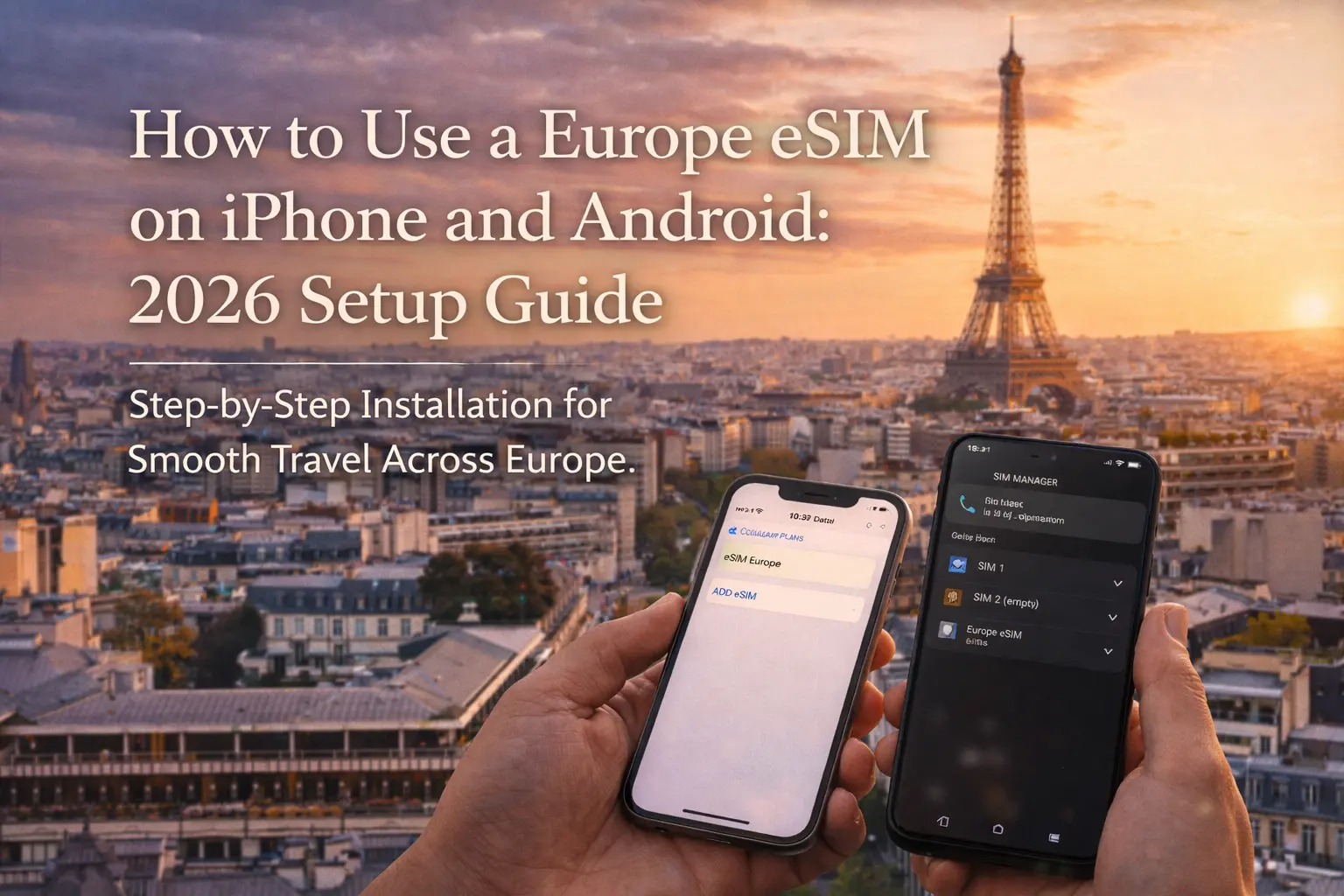
How to Use a Europe eSIM on iPhone and Android: 2026 Setup Guide
Picture this: you land at Paris Charles de Gaulle after an overnight flight, you still need to message your Airbnb host, pull up the metro map, and maybe order an Uber. Instead of hunting for airport Wi‑Fi or a SIM kiosk, your phone just connects. That is exactly what a good Europe eSIM setup guide should help you achieve—smooth, stress‑free connectivity from the moment the plane doors open. In this 2026 how‑to, I’ll walk you through everything you need to know to install, activate, and use a Europe eSIM on both iPhone and Android, based on years of testing eSIMs across the continent. If you’re also planning to hop over to Italy, it’s worth comparing this regional option with a dedicated Italy eSIM data plan so you can choose the best fit before you fly.
We’ll cover what a Europe eSIM actually is, what you must check before buying, and then go step by step through installation on iOS and Android. I’ll also share the exact settings I use to avoid surprise roaming charges, plus real‑world troubleshooting tips for those annoying moments when mobile data just will not cooperate. By the end, you’ll know not only how to set up your eSIM, but also when to activate it, how to switch between your home SIM and your travel plan, and what to do if things go wrong while you’re standing in a crowded station in Berlin or on a ferry in the Greek islands.
1. What a Europe eSIM Actually Is (And Why It’s Better for 2026 Travel)
Before diving into buttons and settings, it helps to understand what a Europe eSIM really is. A Europe eSIM is a digital SIM profile you download to your phone that gives you mobile data coverage across multiple European countries—often 30 or more—without needing a physical SIM card. With providers like EasyAlo, a single Europe eSIM can cover popular destinations such as France, Spain, Italy, Germany, the Netherlands, and many more, so you don’t have to swap SIMs at every border. In my experience, this is a game‑changer on trips where you’re taking a Eurail pass or low‑cost flights between cities every few days.
Technically, an eSIM is a programmable chip that’s already soldered into your phone’s motherboard. Instead of inserting a plastic SIM, you scan a QR code or enter an activation code, and your phone downloads a carrier profile over the internet. This profile includes your data plan, the network partners you can connect to, and your APN (Access Point Name) settings. Once installed, it behaves just like a normal SIM for data, but many Europe eSIMs are data‑only, which means you won’t get a local phone number for SMS or traditional calls. You’ll use WhatsApp, FaceTime, Telegram, or similar apps for communication instead.
For most travelers, a regional Europe eSIM is more flexible than buying separate local SIMs in each country. Consider a two‑week itinerary: three nights in Paris, four in Barcelona, a weekend in Rome, and a final stop in Athens. With a Europe eSIM, you can keep the same data plan the whole time and let the phone automatically roam between partner networks. If you were using local SIMs, you’d lose time in each airport finding a shop, dealing with ID requirements, and swapping tiny cards. If you know you’ll spend your whole trip in one country, a country‑specific plan like an eSIM for France city breaks might be slightly cheaper, but for multi‑country routes, the regional option almost always wins on convenience.
Another reason Europe eSIMs shine in 2026 is cost control. Many home carriers still charge €5–€10 per day for roaming passes, or worse, bill per megabyte at eye‑watering rates. A prepaid Europe eSIM from EasyAlo typically offers a fixed amount of data—say 10 GB or 20 GB—for a transparent, upfront price. This means you know exactly what you’re paying, and you can monitor your usage without fear of bill shock. Experienced travelers know that being able to stream a quick Google Maps route, translate a menu, or upload photos without constantly worrying about the meter makes a huge difference in how relaxed you feel on the road.
2. What You Need Before Setting Up a Europe eSIM
Setting up a Europe eSIM is straightforward if you prepare a few things in advance. The first non‑negotiable is an eSIM‑compatible phone. Most iPhones from the XS and XR series onward support eSIM, and by 2026, Apple’s iPhone 14, 15, and 16 lines are fully compatible, with some models in the US shipping without a physical SIM tray at all. On the Android side, recent devices from Samsung (Galaxy S21 and newer), Google (Pixel 4 and newer), and many Xiaomi, Oppo, and OnePlus models support eSIM as well. If you’re unsure, EasyAlo maintains a detailed about eSIM compatibility page that lists supported models, and I strongly recommend checking it before you purchase anything.
The second requirement is that your phone must be unlocked. This means it isn’t restricted to a single carrier. If you bought your device on a contract, especially in North America, there’s a chance it’s still locked. You can usually check this in your settings: on iPhone, go to Settings > General > About and look for “Carrier Lock.” If it says “No SIM restrictions,” you’re good to go. If not, you’ll need to contact your carrier and ask them to unlock it, which can take anywhere from a few minutes to a few days depending on their policy. Without an unlocked device, your Europe eSIM may install but won’t connect to local networks.
You’ll also need a stable internet connection to install the eSIM profile itself. This can be Wi‑Fi at home, at your office, or even your home mobile data before you leave. I’ve found that installing the eSIM the day before departure works best, when you’re calm and not rushing to the gate. This way, if anything looks off—like a QR code that won’t scan or an activation code that doesn’t work—you still have time to contact support. Finally, you should have your EasyAlo purchase confirmation email handy, since it contains your QR code, manual activation details, and any specific Europe eSIM activation instructions for your plan.
One more thing that’s easy to overlook: make sure you know your approximate data needs. Streaming HD video all day is very different from occasional maps and messaging. For example, 1 GB might cover light use for a couple of days, but if you’re uploading Instagram Stories from every cathedral and café, you’ll burn through that quickly. EasyAlo’s regional plans are usually available in multiple sizes—5 GB, 10 GB, 20 GB, and sometimes unlimited options—so think realistically about your habits. If you’re also planning a side trip outside Europe, say to Istanbul or Cappadocia, it’s worth comparing with a dedicated Turkey eSIM option for that leg, since your Europe plan may not cover non‑EU destinations.
3. How to Install a Europe eSIM on iPhone Step by Step (2026)
Let’s start with iPhone, because Apple’s interface is fairly consistent across recent models and iOS 17 and 18. Here’s how to install a Europe eSIM on iPhone step by step, in a way that minimizes last‑minute stress at the airport. I’ll assume you’ve already purchased your EasyAlo Europe eSIM and received the email with your QR code and details.
3.1 Installing the eSIM Profile on iPhone
First, connect your iPhone to Wi‑Fi. Then open the email from EasyAlo on a second device (like a laptop or tablet), or print the QR code. On your iPhone, go to Settings > Mobile Data (or “Cellular” in some regions), then tap Add eSIM or “Add eSIM from QR Code.” Use your iPhone’s camera to scan the QR code provided. Your phone will recognize the carrier profile and show a screen labeled “Add Mobile Plan” with the Europe eSIM details. Tap Continue, then Add eSIM. The download usually takes less than a minute on a decent connection.
Once the eSIM has downloaded, iOS will ask you how you want to label your plans. You might see options like “Primary,” “Secondary,” “Travel,” or you can create a custom label such as “Europe 2026.” I recommend choosing something clear like “Europe eSIM” so you can easily distinguish it from your home SIM later. Next, your iPhone will ask which line you want to use for mobile data and which for calls and SMS. In most cases, you’ll want to keep your home SIM for calls and SMS (if you need to receive bank codes or messages) and set your Europe eSIM as the data only line.
After that, you’ll see a screen for “Default Line.” If you don’t plan to use your Europe eSIM for voice calls, set your home SIM as the default for voice and SMS, and use the Europe eSIM only for data. This is the setup that has worked best for me when traveling across Schengen countries, because it lets me keep my regular number active for two‑factor authentication while avoiding my home carrier’s data roaming charges. You can always change these settings later under Settings > Mobile Data.
3.2 Activating Data and Roaming on iPhone
Once the eSIM profile is installed, you still need to make sure it’s configured correctly for data use. Go back to Settings > Mobile Data and tap on your new Europe eSIM line. Toggle Turn On This Line if it isn’t already on. Then check that Data Roaming is enabled for this line, because your Europe eSIM may roam between partner networks in different countries. Don’t worry—this roaming is part of your plan, not extra charges.
Next, under Mobile Data, look for the “Mobile Data” section where you can choose which line provides data. Select your “Europe eSIM” as the data line. If you’re still at home and don’t want to start using the eSIM yet, you can leave it off and switch it on when you land in Europe. This is usually the best way to handle how to activate eSIM when traveling in Europe: install it at home, but only toggle data on once you arrive at your destination airport.
Finally, some plans require you to check or manually enter APN settings. With EasyAlo, these are usually configured automatically, but it’s worth verifying. On the Europe eSIM line, tap Mobile Data Network and confirm that the APN matches the details in your EasyAlo email or dashboard. If it’s blank or incorrect, enter the APN exactly as provided, then restart your phone. In my experience, a quick reboot solves 80% of “no data” issues on iPhone after installing a new eSIM.
4. How to Install a Europe eSIM on Android Step by Step (2026)
Android setup is just as doable, but the menus look a bit different depending on your brand and Android version. Still, the overall process for how to install a Europe eSIM on Android step by step is similar across Samsung, Google Pixel, and other major manufacturers. I’ll outline the general approach and note where you might see different wording.
4.1 Adding the eSIM on Samsung, Pixel, and Other Android Phones
Start by connecting your Android phone to Wi‑Fi. Open your Settings app and go to Connections > SIM Manager (Samsung) or Network & Internet > SIMs (Pixel and many others). Look for an option that says Add eSIM or “Download a SIM instead.” Tap this, and you’ll usually see two choices: scan a QR code or use an activation code. Most EasyAlo plans use QR codes, so select the scan option and point your camera at the QR code on your laptop screen or printout.
Your phone will detect the new plan and show you a confirmation screen with carrier information and sometimes the network name. Tap Download or Activate, and wait while the eSIM profile installs. This can take from 15 seconds to a couple of minutes. Once installed, your phone might ask you to name the SIMs, similar to iPhone. Again, pick a clear label like “Europe eSIM” so you can easily see which one you’re using later.
On many Android devices, you’ll then see a screen asking which SIM to use for mobile data, calls, and SMS. I recommend choosing your Europe eSIM for mobile data and keeping your home SIM for calls and SMS, especially if you’re expecting verification codes or calls from home. If you prefer to keep things simple and only use the Europe eSIM while abroad, you can temporarily disable mobile data on your home SIM or even turn that SIM off completely in the SIM Manager settings.
4.2 Enabling Data and Roaming on Android
After the eSIM is installed, go back into Settings > Connections > SIM Manager (or the equivalent on your device). Make sure your Europe eSIM line is toggled on. Then look for a section called Mobile Data or “Preferred SIM for Data” and select your Europe eSIM. This tells your phone which line to use when apps request an internet connection. If you’re still at home, you can leave mobile data off for the Europe eSIM and only switch it on when you land in Europe.
Next, open Mobile Networks for the Europe eSIM line and ensure that Data Roaming is turned on. This is crucial because your travel eSIM for Europe Android will often connect to different partner networks as you move between countries. With EasyAlo, this roaming is included in your plan, so you don’t pay extra for crossing from, say, France into Belgium. If you forget this step, you might see full signal bars but no actual internet access once you leave the first country.
As with iPhone, it’s wise to verify APN settings. Under the Europe eSIM’s mobile network settings, tap Access Point Names and confirm that the APN matches the one provided by EasyAlo. If you need to add a new APN, tap the plus icon, enter the name and APN field exactly as instructed, save, and then select that APN as active. I’ve had situations in Eastern Europe where APNs didn’t populate automatically, and manually entering them was the difference between being stuck at a bus station with no maps and getting to my hostel on time.
5. Best Practices: When and How to Activate Your Europe eSIM
Now that you know the mechanics, let’s talk strategy—specifically, the best way to set up a Europe eSIM before traveling. In my experience, the sweet spot is to install the eSIM at home, but activate data only when you arrive in Europe. This aligns with how most EasyAlo plans work: the validity period only starts when your eSIM first connects to a supported network in the covered region. That means you can safely install it a few days early without “wasting” any of your plan’s days.
Here’s a simple approach that works well. Two or three days before departure, while on home Wi‑Fi, follow the installation steps for your iPhone or Android device and confirm the eSIM shows up in your SIM or Mobile Data settings. Then, turn the line off or leave mobile data disabled for that line. When your plane lands in Europe and you’ve switched off airplane mode, go into your phone’s settings, enable the Europe eSIM line, set it as the data line, and make sure data roaming is on. Within a minute or two, you should see 4G, LTE, or 5G appear next to your signal bars.
Travelers often ask how this timing works if they’re transiting through multiple countries on day one. For example, flying from New York to London, then connecting to Athens. With a regional Europe eSIM for travelers, it usually doesn’t matter which covered country you hit first; the plan will start when you connect to any partner network within the region. If you have a separate country‑specific plan, like a dedicated Greece eSIM package, then you’d wait to enable that until you’re actually in Greece, and rely on airport Wi‑Fi or your home SIM’s roaming during the London layover if needed.
One counterintuitive tip I’ve learned over the years: don’t rush to test your eSIM while still on the jet bridge or before the plane doors open. Airports can have patchy signal right at the gate, and you might think something is wrong when it’s just a coverage dead spot. Instead, walk toward the main terminal, switch off airplane mode, enable your Europe eSIM data, and give it a minute or two. Only start troubleshooting if you still have no data by the time you reach passport control or baggage claim.
6. Using a Europe eSIM and Physical SIM Together (Dual SIM Tips)
One of the biggest advantages of modern phones is dual SIM capability, which lets you use a Europe eSIM and your physical SIM at the same time on iPhone or Android. This is especially useful if you need to keep your home number active for calls and SMS, while using the Europe eSIM for affordable data. The key is understanding how your phone decides which SIM to use for what, so you don’t accidentally rack up roaming charges.
On iPhone, you can fine‑tune this under Settings > Mobile Data. You’ll see options for “Default Voice Line,” “Mobile Data,” and sometimes “Allow Mobile Data Switching.” Set your home SIM as the default voice line if you want to receive calls and SMS there, and choose your “Europe eSIM” as the Mobile Data line. I recommend turning Allow Mobile Data Switching off, so your iPhone doesn’t automatically fall back to your home SIM’s data if the Europe eSIM signal gets weak. This single toggle has saved me from surprise roaming charges more than once.
On Android, similar controls live in SIM Manager or “SIM Cards & Mobile Networks.” You can choose a default SIM for calls, SMS, and data separately. Again, set your Europe eSIM as the data SIM and your home SIM for calls and SMS. Many devices also let you specify which SIM to use for each contact or call, so you can, for example, always call your hotel using your home SIM if you have a good roaming plan for voice but want to keep data usage on the eSIM. When I’m traveling for longer than a week, I usually disable mobile data entirely on my home SIM to remove any risk.
There’s also the question of battery life. Running two active SIMs can drain your battery slightly faster, especially if one of them is struggling to find a network. If you’re on a long train ride across rural France or Germany and notice your battery dropping faster than usual, consider temporarily disabling the SIM you don’t need at that moment. I’ve done this on overnight trains where I only needed my Europe eSIM, and it gave me a noticeable bump in battery endurance until I reached my next hotel.
7. Common Problems and How to Fix Them (Real-World Troubleshooting)
Even with the best preparation, things occasionally go sideways. Maybe you land in Rome and your phone stubbornly refuses to get data, or your speeds are painfully slow on a crowded evening in Barcelona. Here are some of the most common issues I’ve seen with Europe eSIM activation instructions in practice, along with practical fixes you can try before you panic or start searching for a physical SIM.
7.1 “No Service” or No Data After Landing
If you see “No Service” or you have full signal bars but no internet, start with the basics. First, confirm that airplane mode is off and that your Europe eSIM line is turned on in your SIM or Mobile Data settings. Next, make sure your Europe eSIM is selected as the data line and that data roaming is enabled for that line. If all of this looks correct, try a full restart of your phone; this simple step resolves connectivity issues more often than you’d think, especially right after installing a new eSIM.
If a restart doesn’t help, check APN settings against the details in your EasyAlo account or email. A missing or mistyped APN is a classic culprit. On iPhone, you’ll find this under Mobile Data Options > Mobile Data Network; on Android, it’s under Access Point Names for the Europe eSIM line. If everything matches and you still have no data, go to the network selection screen and try switching from “Automatic” to manual, then pick one of the partner networks listed in your plan. In some smaller airports or border regions, your phone might latch onto a weaker network by default, and manually choosing a different one can fix the problem.
7.2 Slow Speeds or Dropped Connections
Sometimes your Europe eSIM connects fine, but speeds are disappointing. This can happen in very crowded areas, like during big events in cities such as Venice Carnival or on New Year’s Eve in central London. Networks get congested, and everyone’s data slows down. In these situations, try toggling airplane mode on and off to force a reconnection, or switch between 5G and 4G/LTE in your mobile network settings. I’ve had evenings where 4G was actually more stable than 5G because fewer people were using it.
If you’re in a rural area, slow speeds may simply reflect limited infrastructure. For example, on a road trip through the Scottish Highlands or parts of rural Eastern Europe, even the best eSIM will only be as fast as the local network. In those cases, planning ahead is your best defense: download offline maps for your region, save important bookings to your phone, and grab any essential info while you’re still in a town with strong signal. For winter trips, guides like the Belarus winter travel connectivity guide can help you set realistic expectations for coverage in colder, more remote destinations.
7.3 Accidentally Using Your Home SIM’s Data
One of the nastiest surprises is coming home to a big roaming bill because your phone quietly used your home SIM’s data instead of your Europe eSIM. To avoid this, always double‑check which line is set as the data SIM immediately before you land and again after you connect. On both iPhone and Android, you can also disable mobile data entirely on your home SIM while abroad. In my own travels, I’ve made this a habit: as soon as I enable my Europe eSIM, I flip the data switch off for my home SIM and only turn it back on when I’m home again.
If you suspect your home SIM has been used, you can usually see per‑SIM data usage in your phone’s settings. On iPhone, go to Settings > Mobile Data and scroll down; on Android, look under “Data usage” for each SIM. This can help you catch an issue early on a long trip, rather than discovering it on your next bill. If your home carrier offers data roaming caps or alerts, it’s worth enabling those before you travel as an extra safety net.
8. Final Tips and Next Steps for Seamless Europe Connectivity
By now, you should have a clear picture of how to activate a Europe eSIM on iPhone in 2026 or set up a travel eSIM for Europe Android device without drama. The main ingredients are preparation—checking compatibility and unlocking status—plus a calm, step‑by‑step installation before your trip, and a deliberate activation of data once you land. If you remember to set your Europe eSIM as the data line, keep data roaming enabled for that line, and disable data on your home SIM, you’ll avoid the most common pitfalls that catch travelers off guard.
Looking ahead to your actual trip, think about how connectivity fits into your broader plans. If you’re spending a week in London and then heading to Scotland, a regional Europe plan paired with a focused UK eSIM city and countryside option can give you excellent coverage in both urban and rural areas. If your itinerary includes sun‑seeking winter escapes, such as combining European cities with a side trip to Cancun or Tulum, guides like the Mexico winter sun connectivity article can help you layer regional plans intelligently so you stay online everywhere without overpaying.
The real power of eSIMs is flexibility. You’re no longer tied to one plastic card or one country’s network; you can mix a Europe eSIM for your multi‑country rail journey with a local eSIM for a specific destination if you find a great deal. As long as you understand how to switch lines on your phone and keep control over which SIM is handling data, you’re in charge. When you’re standing in a foreign airport, trying to find your hotel or rebook a missed connection, that control translates directly into less stress and more time actually enjoying your trip.
If you’re ready to set things up, your next step is simple: choose the Europe plan that matches your route and data needs, confirm your phone is unlocked and eSIM‑ready, and install the profile a couple of days before departure. With that done, you’ll walk off the plane in Europe with working maps, messaging, and ride‑hailing in your pocket—exactly how modern travel should feel.