





 France
 Germany
 Japan
Japan




























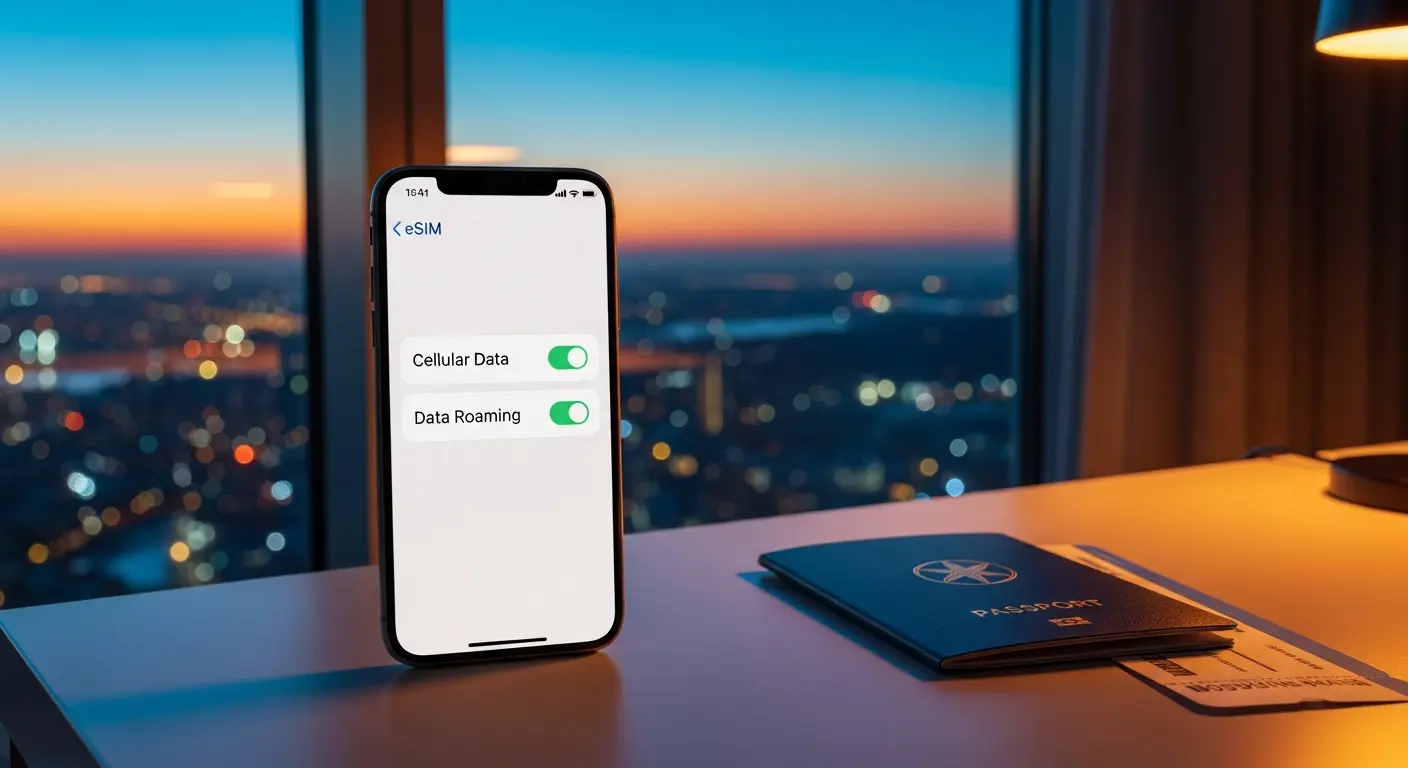
As an essential tool for modern travelers, eSIMs offer unparalleled convenience, allowing you to switch data plans without swapping physical SIM cards. However, like any technology, you might occasionally encounter eSIM troubleshooting challenges. Whether you're facing eSIM activation problems in a new country like Mexico or your Mexico eSIM data isn't working, these mobile data connectivity problems can be frustrating. This comprehensive guide is designed to help you quickly identify and resolve common travel eSIM issues, ensuring you stay connected wherever your adventures take you.
We'll walk you through a step-by-step guide to troubleshooting eSIM issues, covering everything from basic checks to more advanced solutions. Our goal is to empower you with the knowledge to tackle embedded SIM errors and get your digital SIM back online efficiently, minimizing disruptions to your travel plans.
What You'll Need Before You Start
Before diving into the fixes, ensure you have these prerequisites:
- Your Device: An eSIM-compatible smartphone (iPhone, Android, etc.).
- EasyAlo Confirmation Email: This contains your eSIM QR code or manual activation details.
- Internet Access: Temporarily use Wi-Fi or your home SIM's data to access guides or contact support if needed.
- Patience: Troubleshooting can sometimes take a few minutes.
- Basic Device Knowledge: Knowing how to navigate your phone's settings.
Step-by-Step eSIM Troubleshooting Guide
Follow these steps in order to resolve most common eSIM data not working issues and embedded SIM errors.
Step 1: Basic Checks and Device Restart
Often, the simplest solutions are the most effective. Start here to address immediate mobile data connectivity problems.
-
Restart Your Device: A quick restart can refresh your phone's network connection and resolve temporary glitches. Turn your phone off completely, wait 30 seconds, and then turn it back on.
- Tip: This is the first thing any support agent will ask you to do, and for good reason – it works surprisingly often!
- Common Pitfall: Simply locking and unlocking your phone isn't a full restart.
-
Check Signal Strength: Are you in an area with network coverage? Sometimes, poor signal can be mistaken for an eSIM data not working issue.
- Tip: Move to an open area, or check the network status indicator on your phone.
- Common Pitfall: Expecting full bars in remote locations.
-
Confirm Roaming is ON (if applicable): For some eSIMs, data roaming needs to be enabled in your phone's settings for the eSIM profile.
- iPhone: Settings > Cellular/Mobile Data > Select your eSIM > Data Roaming > ON.
- Android: Settings > Network & internet > Mobile network > Select your eSIM > Roaming > ON.
- Tip: EasyAlo eSIMs typically require data roaming to be enabled.
- Common Pitfall: Forgetting to enable data roaming, especially when traveling abroad.
Step 2: Verify eSIM Settings and Activation
If basic checks don't work, let's delve into your eSIM's specific configuration to tackle potential eSIM activation problems or incorrect setup.
-
Ensure eSIM is Enabled and Primary for Data: Your phone needs to know which SIM to use for data.
- iPhone: Settings > Cellular/Mobile Data > Turn ON your eSIM (toggle next to the eSIM name). Then, under 'Cellular Data' or 'Mobile Data', select your eSIM plan.
- Android: Settings > Network & internet > SIMs > Ensure your eSIM is 'On'. Then, go to 'Mobile network' and select your eSIM for 'Mobile data'.
- Tip: Name your eSIM clearly (e.g., 'Travel eSIM') during setup to easily identify it.
- Common Pitfall: Having multiple eSIMs and selecting the wrong one for data.
-
Check APN Settings: Incorrect Access Point Name (APN) settings are a common cause of eSIM data not working. EasyAlo eSIMs usually auto-configure, but manual intervention might be needed.
- iPhone: Settings > Cellular/Mobile Data > Select your eSIM > Cellular Data Network. Check if the APN matches the one provided by EasyAlo (usually 'internet' or 'globaldata').
- Android: Settings > Network & internet > Mobile network > Select your eSIM > Access Point Names (APN). Verify or add a new APN with the correct settings.
- Tip: Always refer to your EasyAlo confirmation email for the exact APN details.
- Common Pitfall: Typographical errors when manually entering APN details.
-
Verify Plan Validity and Data Balance: Has your plan expired, or have you used all your data?
- Tip: Check your EasyAlo account or the confirmation email for plan duration and data limits.
- Common Pitfall: Forgetting the plan's validity period, especially for short-term travel eSIMs.
Step 3: Network Selection and Reset
If you're still experiencing eSIM not working after traveling abroad or 'no service' messages, these steps can help.
-
Manually Select Network: Your eSIM should automatically connect to a supported local network. If it doesn't, try selecting it manually.
- iPhone: Settings > Cellular/Mobile Data > Select your eSIM > Network Selection > Turn off 'Automatic' > Select a supported network from the list (refer to EasyAlo's website for partner networks).
- Android: Settings > Network & internet > Mobile network > Select your eSIM > Advanced > Automatically select network > Turn off > Choose a supported network.
- Tip: If the first network doesn't work, try others on the list.
- Common Pitfall: Not knowing which networks are supported in your destination.
-
Reset Network Settings: This can resolve deeper mobile data connectivity problems without erasing personal data.
- iPhone: Settings > General > Transfer or Reset iPhone > Reset > Reset Network Settings.
- Android: Settings > System > Reset options > Reset Wi-Fi, mobile & Bluetooth (or Reset Network Settings).
- Tip: You'll need to re-enter any Wi-Fi passwords after this.
- Common Pitfall: Confusing 'Reset Network Settings' with 'Erase All Content and Settings'.
Tips for Success with Your Travel eSIM
- Install Before You Go: Install your eSIM while you still have a stable internet connection (e.g., at home). The plan typically only activates when it connects to a network in the destination country.
- Keep Your Home SIM Active (but disable data): This allows you to receive calls/SMS on your primary number if needed, while ensuring your eSIM handles data.
- Monitor Data Usage: Regularly check your data consumption through your phone settings or the EasyAlo app/portal to avoid running out unexpectedly.
- Update Your Device: Ensure your phone's operating system is up to date, as updates often include network improvements and bug fixes.
- Contact Support: If all else fails, don't hesitate to reach out to EasyAlo's customer support. Provide them with details of the troubleshooting steps you've already taken.
Common Problems & Solutions for eSIM Connectivity
Problem 1: eSIM Showing 'No Service' or 'SOS Only'
This is a frequent eSIM troubleshooting scenario, especially when you've just arrived in a new country or are in a remote area.
- Solution:
- Check Compatibility: Ensure your phone is eSIM compatible and carrier-unlocked. (Refer to your device manufacturer's specs.)
- Enable Data Roaming: As mentioned in Step 1, this is critical for many travel eSIMs.
- Manual Network Selection: Try manually selecting a network operator from your phone's settings.
- Restart Device: A simple reboot can often re-establish network connection.
- Check APN Settings: Verify these are correct as per EasyAlo's instructions.
Problem 2: eSIM Data Not Working, But Showing Service
Your phone indicates it has a signal, but you can't access the internet. This often points to eSIM data not working due to incorrect settings rather than a lack of signal.
- Solution:
- Confirm eSIM is Selected for Mobile Data: Ensure your eSIM profile is chosen as the primary for cellular data in your phone settings (Step 2).
- Verify APN Settings: Incorrect APN is the most common culprit here (Step 2). Double-check the spelling and details.
- Disable/Enable eSIM: Try turning off your eSIM profile in settings, waiting a few seconds, and turning it back on.
- Reset Network Settings: This can clear any corrupted network configurations (Step 3).
Problem 3: eSIM Activation Problems (QR Code Not Scanning, Manual Details Not Working)
Sometimes, the initial setup can be a hurdle. This addresses common eSIM activation problems.
- Solution:
- Check QR Code Quality: Ensure the QR code is clear, well-lit, and not creased or blurry. Try scanning from a different angle or distance.
- Manual Entry: If QR scanning fails, use the manual entry option provided in your EasyAlo confirmation email. Double-check every character.
- Stable Internet Connection: You need Wi-Fi or another active data connection to download the eSIM profile.
- Device Compatibility: Confirm your device supports eSIM and is carrier-unlocked. Some phones sold in certain regions might not have eSIM functionality.
Problem 4: eSIM Not Working After Traveling Abroad
You've landed, and your eSIM isn't connecting, despite working perfectly before. This is a classic travel eSIM issues scenario.
- Solution:
- Enable Data Roaming: This is the number one reason an eSIM stops working upon arrival.
- Manual Network Selection: Your phone might be trying to connect to a network not supported by your eSIM provider in the new country. Manually select a partner network.
- Restart Your Phone: A fresh start can help your phone register with the local network.
- Verify Activation Time: Some plans activate immediately upon purchase, while others start when they connect to the first network. Check your plan details.
Conclusion
Facing eSIM troubleshooting issues while traveling can be stressful, but with this guide, you're well-equipped to handle most common connectivity problems. From simple restarts to verifying APN settings and manually selecting networks, these steps cover the majority of digital SIM troubleshooting scenarios. Remember to stay calm, follow the steps methodically, and always have your EasyAlo confirmation details handy.
At EasyAlo, we're committed to providing seamless connectivity for your travels. Should you encounter persistent embedded SIM errors or need further assistance, our support team is always ready to help. Enjoy your journey with reliable, hassle-free internet!